
Sketching Fundamentals
Learn the complete beginner workflow for creating clean, dimensioned, fully defined 2D sketches that are ready to drive 3D features.
The Sketching Workflow
Study the whole workflow first, then open each concept below.
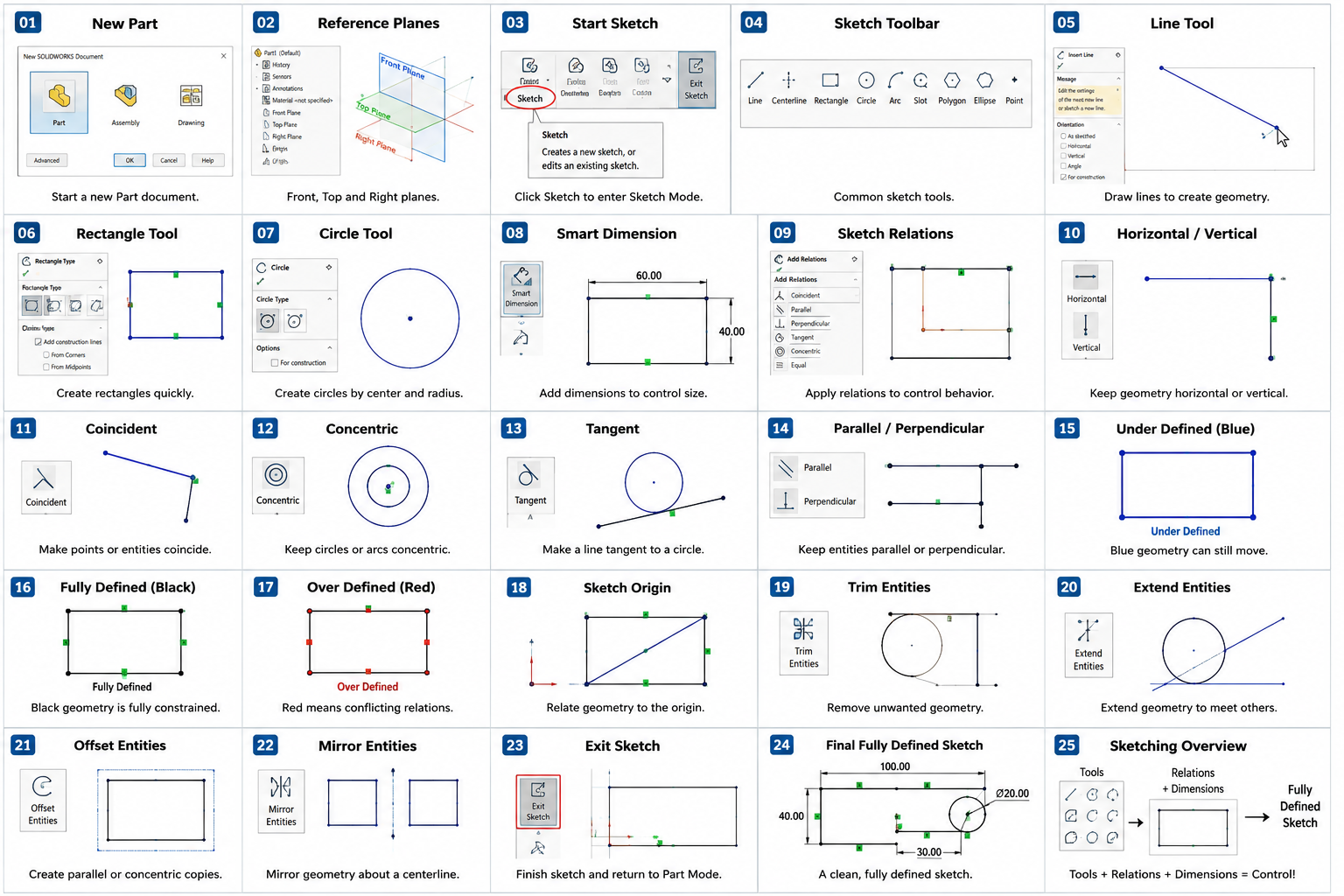
Learn Every Essential Concept
Each concept uses its own dedicated image. No image is reused for a different topic.
The Three Sketch States You Must Understand
Under Defined
Some degrees of freedom remain. With default SOLIDWORKS sketch colors, under-defined entities are normally blue.
Ask: What can still move, rotate, or change size?Fully Defined
The required degrees of freedom are constrained. With default colors, fully defined sketch entities are normally black.
Target: dimensions + relations that express design intent.Over Defined
A dimension or relation conflicts with, or redundantly constrains, the existing definition.
Fix the cause; do not delete constraints randomly.Guided Practice — Fully Define a Plate Sketch
Beginner Rules Worth Remembering
Relations before clutter
Use geometric intent such as Horizontal, Coincident, Concentric, Tangent, Equal, Parallel, and Perpendicular instead of unnecessary dimensions.
Dimension design intent
A dimension should describe how the part is meant to behave when edited, not simply stop an entity moving.
Do not “Fix” everything
Fix can remove freedom, but beginners should learn why geometry is constrained rather than freezing an unclear sketch.
Use the origin deliberately
A stable reference reduces floating geometry and often makes symmetric designs easier to control.
Use S
The default S key opens the customizable Shortcut Bar, including a Sketch-specific shortcut bar.
Selection matters
Ctrl allows multiple selections. Exit a command and return to Select mode when the active tool is getting in your way.